All topics
The network drive
Files and websites
Cameras and sensors
Backing Up Your Server
NAS Reborn backs itself up, to another NAS Reborn device or to any S3 bucket. Every backup is encrypted before it leaves the device, so whatever holds it can never read a name or a byte of it.
Where a backup can go
One engine serves every kind of destination and everything on this page behaves the same way for all of them:
- Another NAS Reborn device. This can be a second device of your own or the device of a friend across town, holding a vault created for you. The host shares an invitation and you paste it, and you can read about that side of the arrangement in Hosting a Backup. Two households hosting each other get mutual off-site backup at no cost beyond the devices they already have.
- Any S3 bucket. Backblaze B2, Wasabi, AWS or any other S3-speaking service, entered as endpoint, bucket and credentials.
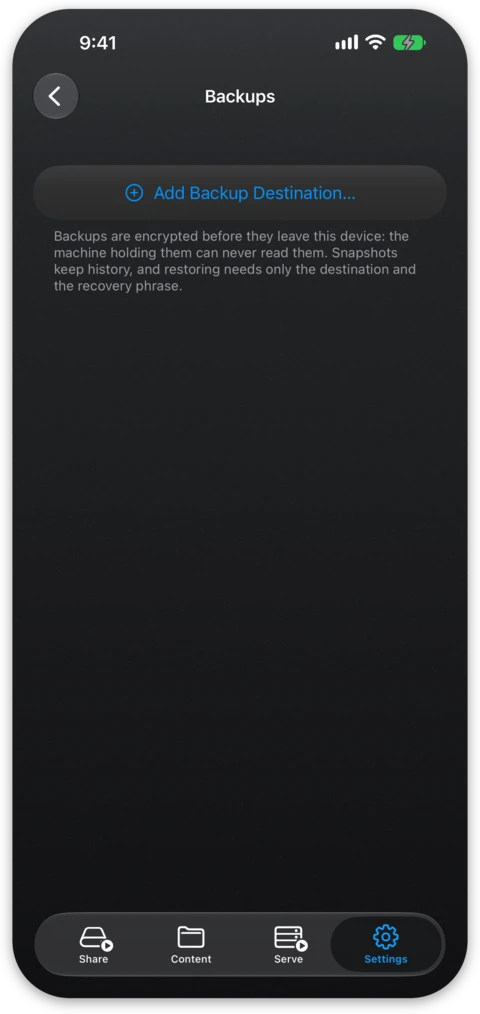
Open Settings → Backups, choose Add Backup Destination… and then paste the invitation or enter S3 credentials manually. Both cases end the same way, with the recovery phrase.
The recovery phrase
Backups are encrypted on this device before a byte leaves it, under a key created for the destination and never sent there. You need that key to restore, so it is kept in two places:
- The recovery phrase, which is shown when the destination is created and again under Show Recovery Phrase on the screen of the destination. Copy it into a password manager, or write it down and keep the paper somewhere safe. To restore on a fresh device you need only the destination and this phrase.
- iCloud Keychain escrow, which is on by default. The key also syncs privately through your iCloud Keychain, so another device of yours can restore without the phrase. You can switch escrow off per destination, and everything then depends on that piece of paper.
What gets included
Each destination has a What's Included screen. "Back up everything" covers all your folders including the ones created later, or you can tick the folders you mean. Folder sizes are measured and shown, and when the capacity of the destination is known the screen tells you whether the selection fits, is getting crowded because history needs room to grow, or does not fit. A folder holding a Time Machine backup can be capped from the same screen so it cannot crowd out the rest.
Repositories are not offered, so keep a clone of one somewhere else. A vault you host for someone else is not offered either.
Snapshots and history
Every run leaves a snapshot rather than overwriting a mirror, so deleting a file today does not take it out of the backup from yesterday. The Keep History screen sets how many days of snapshots are kept and how much space the destination may hold. For a commercial bucket that budget is yours to set, while a NAS Reborn host states its cap in the invitation and enforces it.
When space runs short the oldest snapshots are dropped first and the current run continues. The app tells you when history is being squeezed, and a vault too small to hold even one backup says so.
When backups run
A backup runs once a day, at any hour: it starts when 24 hours have passed since the last one succeeded and the device is plugged in and not running hot. Back Up Now runs one on the spot, and a backup falling behind shows a banner in the app that leads to it.
Browsing, restoring and verifying
All Backups lists every snapshot at the destination. A snapshot opens as a browsable tree straight from its encrypted index, where you can preview single files, export any folder to the Files app or the Finder, or Restore Everything from the top level of the snapshot. Verify downloads and decrypts every object in a snapshot to prove it would restore, which browsing on its own does not do.
When a device is lost
On a new device signed into the same iCloud account, Settings → Backups lists the backups your other devices keep with one section per device. Tap one to see its snapshots. Browsing them changes nothing on either device, and you can restore from there directly. Take Over Backing Up makes the new device the one backing up to that destination. Only one device can write into a vault, so the old one is refused with a message saying so if it still lives.
Without iCloud, Restore from Recovery Phrase… on the same screen does the same job: paste the invitation for the destination or enter its S3 credentials, then the phrase. The app checks that the phrase opens the backup there before showing it. After a take-over this way, the device backs up all your folders with the usual history settings, since the phrase does not carry the old device's choices, and you can change both on the screen of the destination.
Restoring without the app
A backup can be restored without the app, this site or the App Store.
Every vault holds, in plain text beside the encrypted objects, a short Python
script named nas-reborn-restore.py that lists snapshots, restores them and verifies them
from the files and the recovery phrase alone. The same script is
published here so you can read
it before you ever need it. It is also the written specification of the vault
format, so anyone can check what the app does or write a reader of their own.
To use it you need the vault as a folder on a computer, and Python 3 with the cryptography package:
python3 -m pip install cryptography
A vault hosted on another NAS Reborn device is a folder on that device,
so its owner can copy it onto a drive or share it over the network drive of
the app. From a commercial bucket, copy the nas-reborn-backup prefix down
with any S3 tool, for example rclone:
rclone copy remote:bucket/nas-reborn-backup vault/nas-reborn-backup
Then list the snapshots and restore the newest one:
python3 nas-reborn-restore.py list vault
python3 nas-reborn-restore.py restore vault restored
The script asks for the recovery phrase and refuses anything it cannot verify.
--snapshot picks an older snapshot and --path a single folder or file,
verify checks a snapshot without writing anything, and rescue rebuilds a
best guess from the encrypted headers of the blobs when every snapshot index
is lost. Every command needs the phrase. The key kept in iCloud Keychain
can only be used by another Apple device signed into your account, from inside
the app.
Free and Pro
One destination is free, with full snapshot history, full restore and full verification. Backing up to more than one destination is Pro, and restoring works without it.