All topics
The network drive
Files and websites
Cameras and sensors
Folders, Access and Websites
Everything the server shares and serves lives in one directory tree, managed on the Content tab. Every top-level folder in it can be an SMB share, an S3 bucket and a website at the same time.
One tree
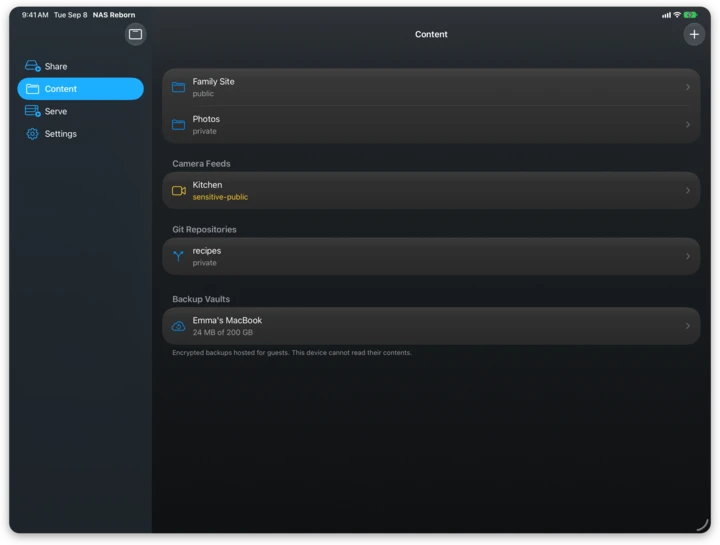
The Content tab shows the tree, with the folders first and the other
kinds of content, repositories, camera feeds and backup vaults, below them.
Create a folder called photos in the app, in the Files app or with the
create-bucket command of any S3 client, and it immediately exists in every
sense:
- as the folder
photoson the network drive, - as the S3 bucket
photosfor signed clients, - as the website
https://yourserver.nas2.dk/photos/when public, - and as a plain folder you can browse and edit in the Files app.
These are the same bytes seen four ways, and deleting the folder removes the share, the bucket and the site with it.
A git repository is one of these folders too
and has a .git directory inside it, so it is a share and a bucket like any
other. A camera feed, though not a folder,
takes its name from the same list, so every name in the tree stays unique.
Off, private, protected or public
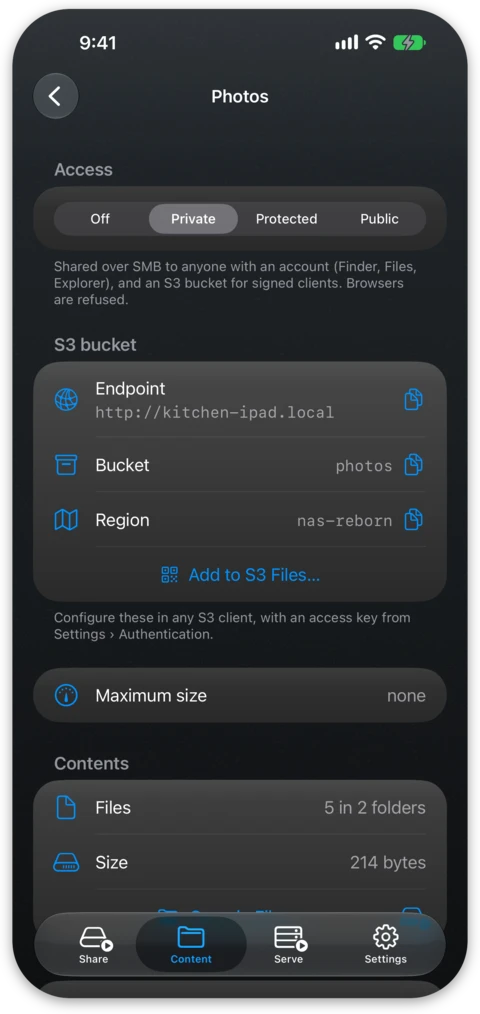
Each top-level folder has an access level, set on the folder's own screen, and everything inside the folder inherits it. The four levels widen the audience one step at a time:
- Off: the folder stays in the tree and in the Files app but is neither shared nor served.
- Private, which is the default. The folder is on the network drive for signed-in accounts, and S3 requests need a signature from one of your access keys. Web browsers are refused, so a folder you drop into Files cannot become world-readable by accident.
- Protected: the same as private as far as S3 is concerned, and a web browser may read it after signing in with a device account. Use this for pages meant for the household rather than the world.
- Public: anyone can view and download over the web and the folder serves as a website. All changes still require a signed request, and so does listing the folder over S3, so a public site does not reveal its complete file inventory.
Websites
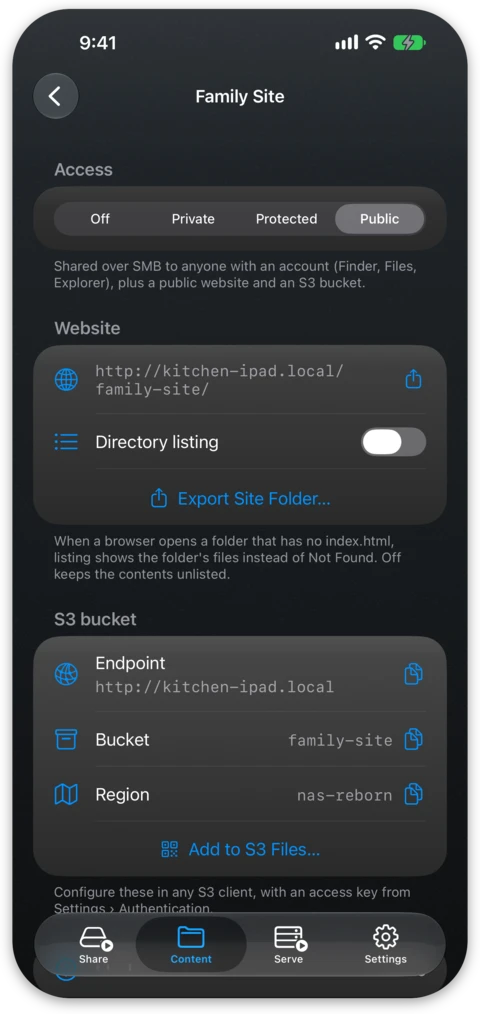
A public folder answers at the address its own screen shows. It serves its
index.html at /photos/ and shows its 404.html for missing pages, and
you place both in the folder root. When
there is no index.html, a per-folder toggle decides whether visitors get a
plain directory listing. You edit a page in the Files app or upload it with an
S3 client, and the change is live on the next request. Appending ?w=400 to
an image URL returns a downscaled copy, which is useful for thumbnails.
You decide which folder answers at the server's front door, /, under
Default Website in Settings. Until you pick one, your public folder answers
there when there is exactly one, and the built-in landing page answers
otherwise. Choose Clear to keep the landing page in any case. For
sites with layouts, Markdown and posts, see
Template Sites.
Everything is in the Files app
The whole tree is visible in the Files app under On My iPhone → NAS Reborn and in the Finder when you connect the device by cable. You import folders by dragging them in and you copy them out the same way, at any time. Long-press a folder in NAS Reborn to open it directly in Files. On a Mac the tree lives in the app's own folder, and Reveal in Finder on a folder opens it there.
.git, .env,
.DS_Store, _config.yml, _layouts) are
never served to web visitors, even in public folders. The exception is a
.well-known folder at the top of a folder, which is served like
any other, as the web expects files such as security.txt there.
Your own signed S3
clients still see them, so syncing a working directory round-trips
completely.Folders from other apps and drives
NAS Reborn can also serve a folder that lives outside its own storage, such as a directory on a USB drive or one managed by another app like Working Copy. Add it with the folder picker or drag it in from the Files app, and it appears as a normal folder in the tree, labeled with where it lives: "Managed by" the owning app, the name of the drive, or On My iPhone (On My Mac on a Mac). Adding an external folder and sharing it on the network drive is free like any other folder, while serving it as a website or an S3 bucket needs Pro. Adapters, power and drive formats are covered in External Drives.
When an external folder becomes unreachable, because the drive was unplugged or the owning app was removed, its row says so in plain words and web and S3 clients get a "try again later" answer. When you remove an external folder you only stop serving it, and the external files stay as they are.
Free tier limits
The free tier serves up to 2 folders, each serving up to 5 GB over web and S3. The size limit applies to serving only, so SMB and Files-app writes are not counted and a Time Machine backup grows freely past them. A folder over its 5 GB stops answering web and S3 downloads and refuses new uploads until it is back under the limit, while listing and deleting stay open so you can fix it. With more than 2 folders turned on, sharing and serving pause entirely until a folder is set to Off or deleted, and Pro removes all of these limits.
Some folders do not count against that limit. Git repositories are counted separately, and folders from other apps and drives, backup vaults you host for someone and the Time Machine folder, created for you the first time a Mac backs up, are left out of the count.