All topics
The network drive
Files and websites
Cameras and sensors
External Drives
A folder on a USB drive serves like any other folder, so the storage of the server is not limited to what the phone shipped with. With the right adapter and a little care about power you can turn an old device with a big drive into a very capable server.
Connecting a drive
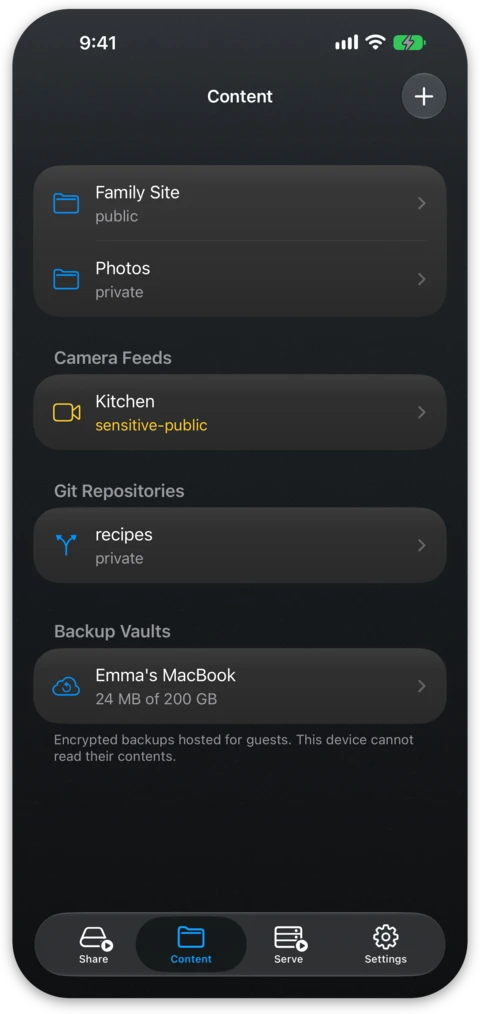
When a drive shows up in the Files app, NAS Reborn can serve from it. Once it is mounted, use Add external directory… on the Content tab or drag the folder in from Files, and pick a folder on the drive. It appears in the tree carrying the name of the drive. Sharing an external folder on the network drive is free like any other folder, while serving it as a website or an S3 bucket needs Pro. How these folders behave in the tree is covered in Folders, Access and Websites.
- A Mac needs none of this. Pick any folder the Finder shows, on the Mac's own disk or on a drive it has mounted, and the power and format notes below do not apply.
- USB-C devices connect the drive directly, or through a hub when the single port also needs to charge the device.
- Lightning devices need Apple's Lightning to USB 3 Camera Adapter. Despite the name it is a general USB port, and its second Lightning port takes the charger so the device stays powered with the drive attached. Lightning runs at USB 2 speed of roughly 35 MB/s on most of these devices, which is plenty for serving files but slow for the first big copy onto the drive.
Moving an existing folder onto a drive
A folder that already lives on the device can be moved. On the folder screen, choose Move to Another Folder… and pick a folder on the drive. Everything is copied over, the drive then serves in place of the folder with the same share name, addresses and access level, and the copy on the device is removed.
The folder on the drive does not have to be empty. What is already in it stays, and files that are in both places with the same content are left where they are, so you can repeat a move that was interrupted. When the same file exists in both places with different content, the move stops, names the files it cannot reconcile and leaves the drive as it was.
The app offers the same move when a Mac first sets up Time Machine, since backups outgrow internal storage quickly. If files change during the copy, for example because a backup is running, the move rolls back and you can try again later.
Powering the drive
An iPhone or iPad supplies only a few watts to accessories. A drive needing more is refused by iOS with an "accessory uses too much power" message. Flash sticks and SSDs are usually fine while spinning hard drives often are not. There are two reliable fixes:
- a drive with its own power supply, so the phone has only itself to power;
- a powered USB hub between device and drive. On USB-C you should prefer a hub with power-delivery pass-through, where the charger goes into the hub and one chain both charges the device and powers the drive. On Lightning the charging port of the Camera Adapter plays that role, and you can attach a powered hub when one drive is not enough.
Formats
iOS mounts drives formatted as APFS, HFS+, exFAT or FAT32 with a single data partition. NTFS does not mount, even read-only, so you need to reformat a Windows-formatted drive first. exFAT is the comfortable choice that both Windows and Mac read and write, and it works for Time Machine backups too, on any device the app runs on and in any format. The server writes each backup to the device first and copies it to the drive in the background, so a moment's interruption to the drive cannot damage a backup. See Time Machine Backups.
Unplugging and reattaching
Before you unplug a drive on purpose, turn sharing off with the power key on the Share tab. The key glows orange while files written over the network are still being copied to the drive, and goes fully dim once all of them are on it.
When you detach the drive, deliberately or by cable accident, its folders show why they are unavailable, and web and S3 clients get a try-again-later answer that no sync client mistakes for deletion. Reattach the drive and serving resumes by itself, as the server remembers its external folders across relaunches and reboots. Removing an external folder in the app only stops serving it, and the files on the drive stay as they are.