All topics
The network drive
Files and websites
Cameras and sensors
Git Repositories
The device can host git repositories on its own storage. You clone, fetch and push over HTTP with any git client, and you can publish a website with every push.
Creating a repository
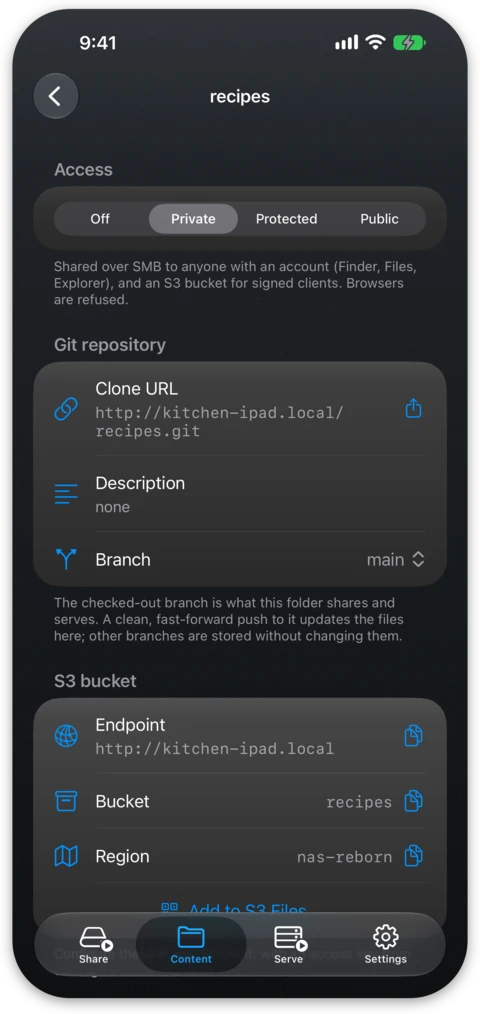
On the Content tab, choose New Git Repository… and it appears in the tree
as a folder with the name you gave it and a .git directory inside. A
repository is an ordinary checkout rather than a bare one, so the files
themselves are right there. You can browse them in the Files app or the Finder, open them on the
network drive or read them with an
S3 client like any other folder. The detail screen
of the repository shows the clone URL and the branch that is checked out,
and lets you switch to another one.
Cloning and pushing
Repositories use device accounts, which are the same username and password as the network drive. The access level of the repository decides who needs one:
- Private or Protected: cloning, fetching and pushing all require an account.
- Public: anyone can clone and fetch, and pushing always requires an account.
- Off: the repository is not served at all.
Over HTTPS, clients sign in with the ordinary password prompt or with one of the API tokens of the account. On the local network, plain-HTTP connections use digest authentication, so the password itself stays off the wire. You can also scope an account to particular repositories, and the ones it cannot reach answer as if they were not there.
API tokens
An API token is a long random string you use instead of the password of an account, so a script or a build machine can hold a credential of its own that you revoke without changing any password. Once the server hosts a repository, a Git Tokens section appears on the screen of each device account in Settings → Authentication. Tap Create API token… and name it after the machine or script it is for. The token is shown once in full with a Copy button, and after that it sits behind dots like the password and needs Face ID, Touch ID or the passcode to be read again.
You paste the token where a git client asks for a password, or as the username with the password field left blank, depending on what that client prefers. A token reaches what its account reaches, and you revoke a single token by swiping it away. Each row shows when the token last signed in. An app that speaks the GitLab API can also create a token for itself the first time it signs in, so a token can appear carrying the name of that app rather than a name you typed. Creating a token requires the password, so one token cannot create another.
Pushing updates the files
Because a repository is a checkout, pushing to the branch it has checked out
also updates the working tree, in the same way as git's own updateInstead.
When you push a commit from your laptop, the new files are immediately what
the Finder, the Files app and any website served from that folder see.
The tree is only moved when this is safe. A push is refused when the checkout
has tracked changes of its own, staged or unstaged, or when the push would
overwrite an untracked file, and the client is told why in the usual
[remote rejected] line. Other untracked files do not get in the way. A push
to this branch must also be a fast-forward, even when forced. Pushing to any
other branch is an ordinary push and leaves the working tree alone.
Large files
The server speaks Git LFS, so repositories with
large binaries work without a second service to run. Pushes and clones carry
LFS objects through the standard batch API, and the objects are stored beside
the repository in .git/lfs/objects in the layout git-lfs uses itself. The
git lfs command line and Working Copy both work against it unchanged. When
you switch branches in the app, objects the new branch needs that are not on
the device yet are fetched from the remote of the repository, if it has one,
and the switch is refused when they cannot be.
Working Copy
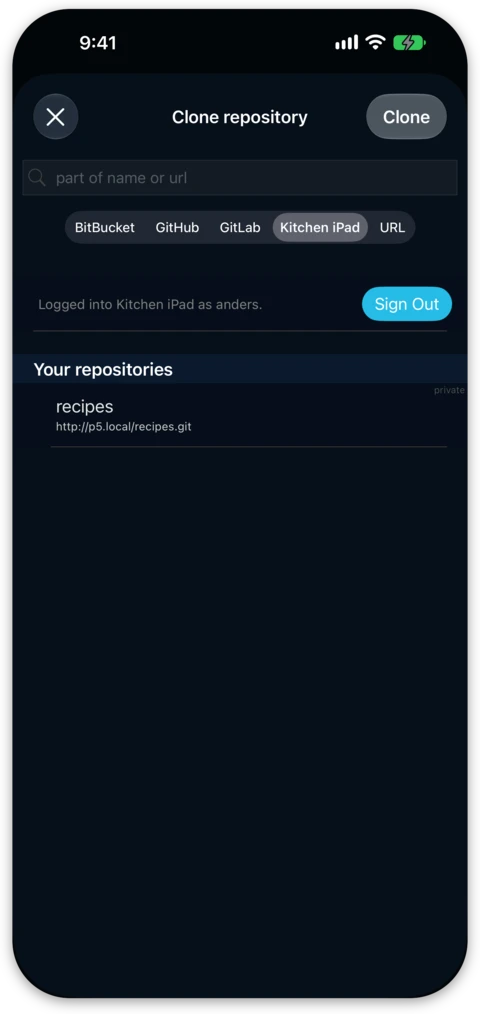
Working Copy, from the same developer, discovers
NAS Reborn servers on your network automatically. On the same Wi-Fi the
device appears under Settings → Hosting Providers in Working Copy, and
adding it signs in with a device account,
the same username and password as the network drive. From there the NAS
Reborn tab of Working Copy's Clone repository sheet lists the
repositories the account reaches, ready to clone, and Working Copy can
create new ones on the device. Away from home the
https://yourserver.nas2.dk address works the same way, entered as the
provider address.
Tower and other GitLab clients
The server answers a slice of the GitLab
API, so desktop clients with a
self-hosted GitLab option can list, create and clone repositories here. In
Tower you add an account in the Services view,
choose GitLab Self-Hosted, and enter the address of your server, your
device account username, and an API token created on the
account's screen in Settings → Authentication. Tower and most GitLab tools
send a token rather than a password when they talk to the API, so the token
goes wherever a GitLab tool asks for one and the password stays in the
password prompt of plain git clients. Both the https:// address and the
local http:// one work. Over plain HTTP the API takes the token as it is,
since a token is scoped and revocable and so may travel where the account
password may not, while git itself signs in with digest authentication.
Connecting self-hosted servers is part of Tower's Pro plan.
Any other git client needs none of this and works with the clone URL alone.
Push to publish
A repository containing a website, whether plain HTML or a Jekyll-style
template site, is also served as one. It is
published at https://yourserver.nas2.dk/name/ under the name of the
repository, subject to the same public access level as any other site.
The site serves the new revision within a second of the push finishing, as
git reports the push done only once the files are checked out. You can write
a post in Working Copy on the sofa, push, and the site is live on the device.
Free tier
The free tier serves up to 2 repositories. Repositories are counted separately, so hosting one leaves the folder limit untouched even though a repository is a folder in every other sense. With more than 2 turned on, git serving pauses until a repository is set to Off or deleted, and Pro removes the limit. The repositories themselves remain plain folders in the Files app or the Finder.