All topics
Setting up
The network drive
Blogs and forums
Files and websites
Cameras and sensors
Editing from a Browser
An editor is a protected folder whose pages change your other folders from a browser. Someone signed in to it can add photos to the family gallery, write a blog post or choose the tiles of a sensor dashboard from a laptop or a phone, in the folders you checked for the editor.
To change a site yourself on the device, use Settings, Posts and Files on its folder's screen (see Template Sites).
Making an editor
On the Content tab, choose Editor… from the + menu (Example editor… on iOS 15), pick the folder it should edit and give the editor a name, with Pro. The list offers your public and protected folders and your groups. Git repositories and backup vaults are left out: a repository changes when someone pushes to it, and a vault belongs to whoever backs up into it.
The editor is created protected, with the folder you picked checked. Open its address in a browser and sign in with a device account to use its pages.
Pages for each kind of site
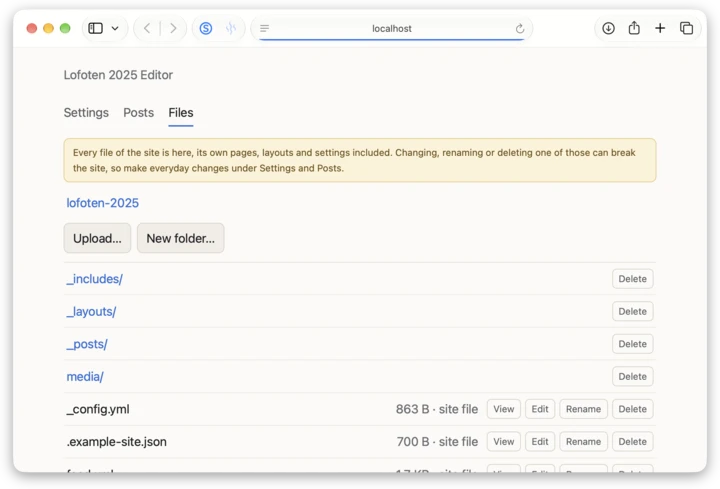
The pages follow the folder you picked:
- For a gallery, a page that adds photos and videos from the device in your hand, beside the gallery's own thumbnails of the ones already there. A photo whose name is taken gets a number added, so every photo in the gallery stays as it was.
- For a blog, the posts newest first, a form for a new post, and the same form for changing the title and text of one. Add photos and videos… puts each one into the post where the cursor is, as a line you can move like any other. Cover picks the picture shown beside the post on the front page and when someone shares a link to it: the first picture in the post unless you choose another. A post keeps its file name when its title changes, so links to it keep working.
- For a download site, the files the download page lists, with view, upload and delete.
- For a podcast, the episodes newest first, a form for a new episode with its MP3 or M4A file, its number and its notes, and the same form for changing one. Add photos and videos… works as in a blog post. An episode keeps its address and the identity podcast apps know it by when its title or audio changes. See Your Own Podcast.
- For a sensor dashboard, the sensors of the device itself, with the dashboard's tiles ticked. Saving adds a tile and its page for each new tick and takes away the tiles you unticked, keeping a tile page you edited by hand.
- For a group, the Settings tab below and the group's own pages under Files. Posts, comments, photos and members stay with the group, out of the editor's reach.
- For any folder, a file manager: browse, view, edit text files, upload, make folders, rename and delete. View opens a file as it is stored, in a new tab. The pages above keep the file manager one tab away under Files, and an editor made for an ordinary folder opens on it.
An editor made for a gallery, blog, podcast, download site, sensor dashboard or group also has a Settings tab, first in the row. It sets the site's title, a description shown under it and in search results and link previews, for a blog a tagline that follows the title in the browser tab, for a podcast what directories ask of a show and its artwork, an introduction above the photos, posts, episodes, files or tiles, and the look: Night, Paper, Sand or Forest colors, an accent color of your own and a mono, sans or serif typeface. The editor's own pages take on the same look, and show a pick as soon as it is made. A site made before these settings shows them once its pages are updated with Update Example Files on its folder's screen.
Writing templates
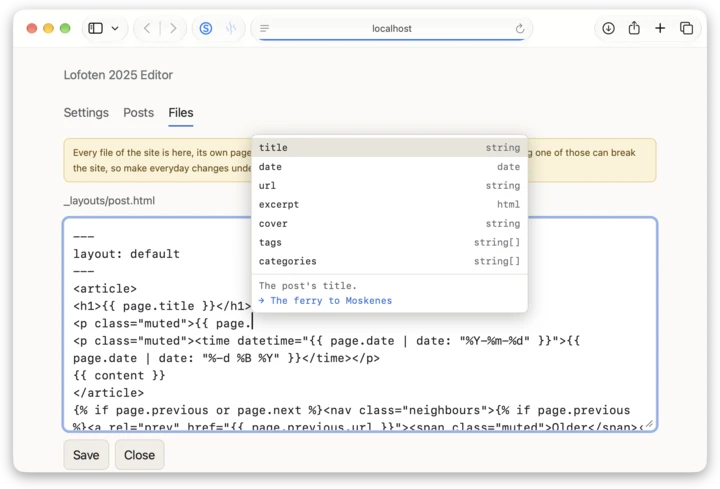
In the file manager's editor, a post's text and the introduction, typing
inside {{ }} or {% %} opens a list of what Liquid offers there: tags,
filters, includes and the site's own variables like page.title or
site.posts. Each entry shows what it gives on this site, from the page the
file is made with, so page.title in a post layout shows the title of the
newest post. Pick one with a tap, or with the arrow keys and Return. Escape
closes the list, and Control-Space opens it where nothing is typed yet.
HTML and Markdown files, posts and the introduction show their syntax in colors as you type: tags, attributes and their values, headings, emphasis, code and links, Liquid in a color of its own, and the front matter's keys and values. The colors follow the site's theme.
Who can change what
An editor lets someone change a folder while all three of these hold:
- they are signed in to the editor, which a protected folder asks for;
- the folder is checked for the editor;
- their account can open the folder in a browser: any account for a public folder, and for a protected one an account whose scope includes it.
The three are checked again for every change, so unchecking a folder, narrowing an account or setting the editor to another access level stops changes at once, in pages that are already open as well. A helper whose account reaches only the editor can still add photos to a public gallery through it, while the gallery stays out of reach on their network drive.
Checking more folders
On the editor's screen in the app, the … button beside the Access setting lists the folders it can edit, with a check mark on each one it does. The button works while the editor is protected and the list has something to choose. Checking a folder needs Pro, and unchecking works with or without it. With more than one folder checked, the pages show a menu for choosing the one to work on.
The editor itself appears in the list as Its own pages. Checking it lets the pages change themselves, which suits adjusting them from a browser. If such an edit breaks them, Restore Editor Pages… in the menu of the folder's Contents section brings back the original pages and keeps every file you added.
Keeping the pages current
The pages are ordinary files in the editor folder, made the way the example sites are. Keep editor updated lets a newer version of the app refresh the pages you have left as they were, and Update Editor Pages does it once. Pages you edited stay as you left them.
How a change travels
Each change is one request with a link the page fetches from the editor right
before making it. A link names one file and one action and expires after five
minutes, and the browser holds only its sign-in to the editor. The pages ask
for links at .nasreborn/links inside the editor folder, which pages you write
yourself can use as well:
GET /family-editor/.nasreborn/links?op=targets
GET /family-editor/.nasreborn/links?op=put&target=family-gallery&key=photos/beach.jpg
op is targets, get, put, delete, copy (a PUT carrying
x-amz-copy-source) or list (with prefix, delimiter and
continuation-token). The answer is JSON with the link, the method to use and
when the link expires. Send the request itself without credentials,
credentials: "omit" in fetch, as the editor's own links.js does.
op=complete with a target and a key answers the completions for writing
that file, as JSON.