All topics
Setting up
The network drive
Blogs and forums
Files and websites
Cameras and sensors
Your Own Blog
A blog for a trip, a family or a hobby, written from any browser and served from a spare iPhone, iPad or Mac at home. The posts, photos and videos stay in a folder on the device, and readers open the blog like any other website.
Start the blog
On the Content tab, open the + menu and choose Blog under Add example, then Empty Blog…. If you already have posts written as Markdown files, Blog from Markdown Files… starts the blog with one post for each file you pick. Give the blog a name, and it appears among your folders.
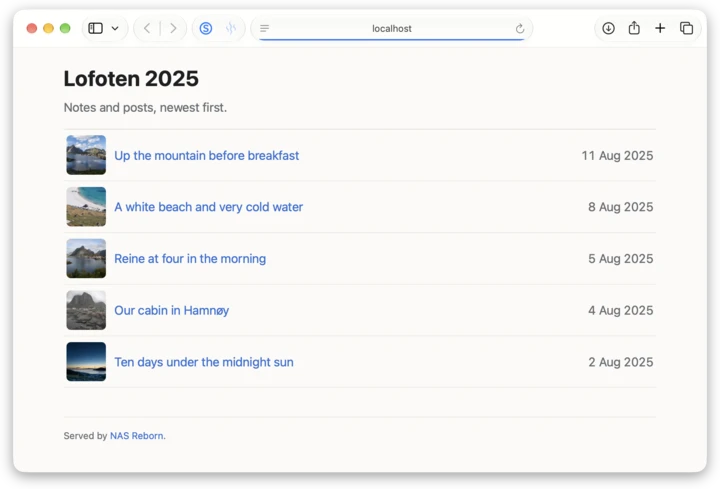
The front page lists the posts newest first, each with a small picture beside it. A post ends with links to the one before and after it, a shared link shows the post's picture, and readers can follow the blog in a feed reader by adding its address.
Write from a browser
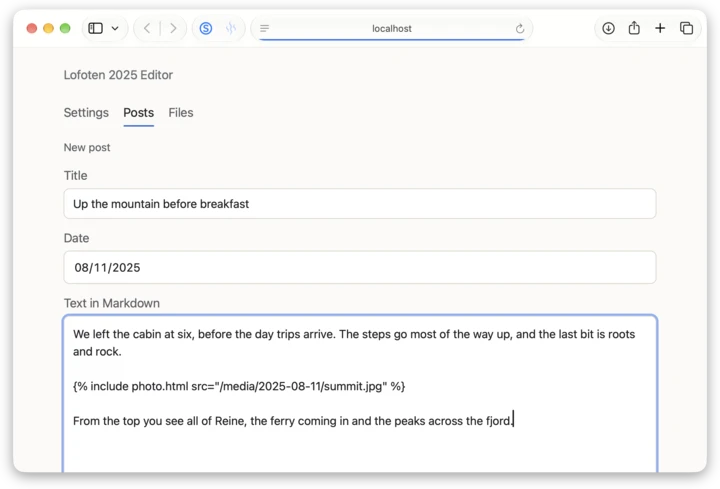
With Pro, choose Editor… from the + menu and pick the blog. Open the editor's address on your laptop or phone and sign in with your device account. The editor opens on the blog's posts with a form for a new one:
- Add photos and videos… puts each one into the post where the cursor is.
- Cover picks the picture shown beside the post on the front page.
- Settings sets the blog's title, a tagline and an introduction, and its look: four color themes, an accent color and a choice of typeface.
You can let someone else write too: give them a device account, and they sign in to the editor the same way. See Editing from a Browser for what an editor can change.
Without Pro, add a post as a Markdown file in the blog's _posts folder, named
with its date and title, such as 2026-10-30-first-day.md, from the Files app,
the Finder or the network drive, written the way
Template Sites describes.
Let readers in
A new blog is Protected, and a browser asks for a device account before showing it. When it is ready for readers, set the folder's Access to Public on its screen in the app.
The Serve tab decides who can reach it:
- with Serve set to LAN, readers on your own network open the address shown on the Serve tab;
- with Serve set to Internet, anyone can open it from anywhere at the device's own HTTPS address, once the outside check on the Serve tab has found the device reachable. See Reaching Your Server when it has not.
With Pro, a
domain of your own, such as
blog.example.com, can serve the blog at its root: add it under Settings →
Hostname and pick the blog under Serves on the domain's screen.
Photos and videos
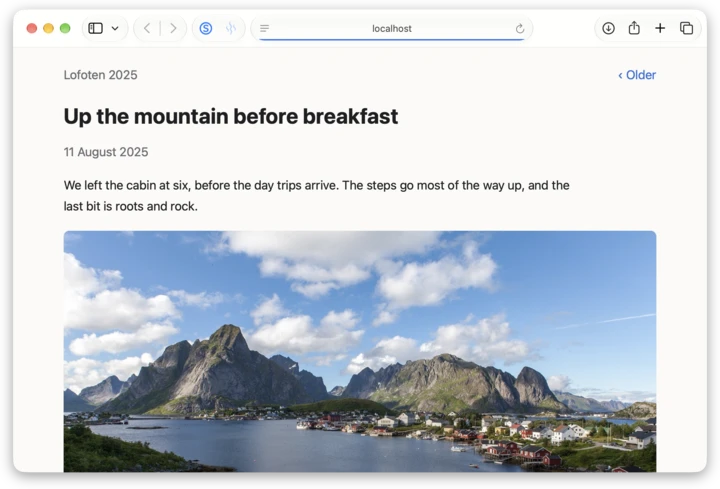
Readers get each photo at a size that suits their screen, and each video at a quality that suits their connection once the device has prepared it.
Where the blog lives
Everything is in the blog's folder: each post is a Markdown file in _posts, and
its photos and videos are in media, in a folder named after the post's date.
The network drive, the Files app and your backups
see the folder like any other, and leaving is a matter of copying it.
Export Site Folder… in the folder's … menu makes a copy of the blog as plain web pages, with Pro, for hosting a copy somewhere else as well.